When building an e-commerce business, most entrepreneurs focus on their website, products, social media, and marketing. While those elements are important, smaller brand touchpoints also shape how customers perceive your business.
One often-overlooked brand touchpoint is your email signature. This everyday element quietly reinforces your identity, credibility, and contact accessibility in every message you send.
Whether you’re responding to customer inquiries, communicating with suppliers, reaching out to potential partners, or networking within your industry, a well-designed email signature ensures your communication feels clear, accessible, and aligned with your brand.
Why Your Email Signature Matters
Think of your email signature as a digital business card.
Every email you send represents your business, and your signature helps ensure recipients always have your key information in one place.
A strong email signature supports three core goals:
- Makes it easy to contact you
- Reinforces brand recognition
- Creates a more polished, unified experience across communication channels
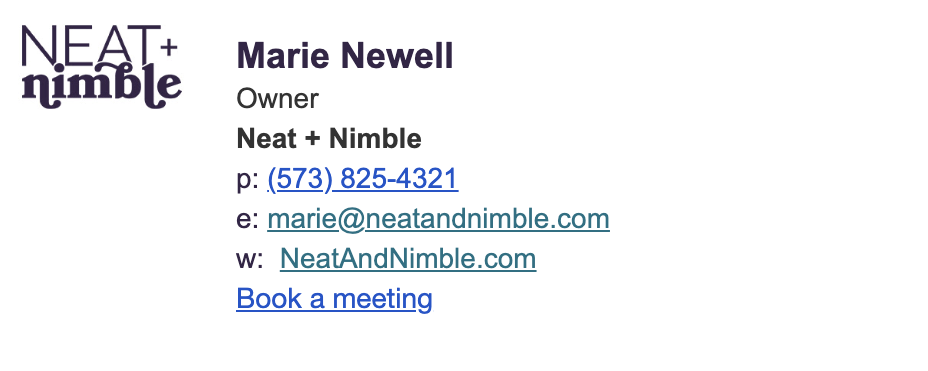
A typical professional signature includes:
- Full name
- Title or role
- Business name
- Website URL
- Phone number
- Social media links (optional)
- Short disclaimer (optional)
Keep it focused. The goal is clarity, not promotion.
Keep Email Signatures Simple and Functional
Email signatures are not websites.
Email clients like Gmail, Outlook, Apple Mail, and mobile apps all interpret formatting differently. What looks perfect in one inbox may break in another.
Because of this, signatures should rely on:
- Simple HTML structures
- Basic formatting
- Standard alignment and spacing
Avoid:
- Complex layouts or columns
- Animations or interactive elements
- Custom fonts that aren’t widely supported
- Over-designed graphics or banners
Simplicity ensures your signature remains readable across devices and email platforms.
Use Web-Safe Fonts and Clean Layouts
Because email clients don’t support fonts consistently, web-safe fonts help ensure reliability.
Common options include:
- Arial
- Verdana
- Georgia
- Tahoma
To improve readability try to:
- Use 10–12pt equivalent sizing for body text
- Avoid thin or overly decorative fonts
- Maintain strong contrast between text and background
- Keep spacing generous enough for mobile viewing
A well-structured signature should feel balanced, not crowded, especially on smaller screens.
Design for Real-World Email Behavior
Email signatures often behave differently depending on the device or theme settings.
Some things you should keep in mind for success with your email signature include:
- Keeping logo sizes small and optimized (don’t let them dominate the signature)
- Using single-column layouts for mobile compatibility
- Ensuring all links are clearly clickable (avoid embedding links in images only)
- Limiting links to essentials (website, portfolio, key social channels)
- Testing in both light and dark mode when possible
These small adjustments prevent broken layouts and improve readability across inboxes.
Avoid Image-Only Signatures
Many people design signatures in Canva and export them as a single image.
While visually appealing, this creates functional problems:
- Not readable by screen readers
- Cannot be copied or selected
- Breaks when images are blocked
- Becomes blurry on some devices
- Limits clickability and SEO value
- Reduces accessibility
Instead, use live text with optional supporting graphics like a logo or headshot.
Add a Disclaimer (When Appropriate)
Some industries benefit from including a disclaimer or confidentiality notice.
Keep the tone aligned with your brand voice.
Traditional
This email and any attachments may contain confidential information intended only for the recipient. If received in error, please notify the sender and delete it.
Friendly
A quick note: this email may contain information intended only for the recipient. If it reached you by mistake, please let us know and delete it.
Modern
Good communication starts with respect. If this message reached the wrong inbox, please notify the sender and delete it. Thank you.
Free (or Affordable) Tools You Can Use
If you’re building your own signature, these tools can help:
- HubSpot Email Signature Generator
- Signature.email
- Mail Signatures
- Canva (use more carefully for layout inspiration, not final output)
After creating your signature, always test it across:
- Desktop email clients
- Mobile devices
- Multiple inboxes (Gmail, Outlook, Apple Mail, etc.)
Look for spacing issues, broken formatting, or misaligned elements.
How to Install Your Email Signature
Setting up your email signature depends on the email platform or device you’re using. Below are the most common setups across Gmail, Outlook, Apple Mail (iOS), and Android.
Gmail (Web)
- Open Gmail and click the gear icon (Settings)
- Select See all settings
- Under the General tab, scroll to Signature
- Click Create new or edit an existing signature
- Paste your signature content
- Set default signatures for new emails and replies (if needed)
- Click Save Changes
Outlook
Outlook Web (most common version):
- Open Settings (gear icon)
- Go to Mail → Compose and reply
- Scroll to Email signature
- Add or edit your signature
- Choose whether to apply it to new messages and replies
- Save your changes
Outlook Desktop (Windows/Mac):
- Open Outlook
- Go to File → Options → Mail → Signatures
- Create or edit your signature
- Assign it to new emails and replies
- Save
Apple Mail (iPhone / iOS Mail App)
- Open Settings on your iPhone
- Tap Mail
- Select Signature
- Choose whether to apply it to all accounts or a specific account
- Paste or edit your signature
- Exit settings to save automatically
Android (Gmail App)
- Open the Gmail app
- Tap the menu icon and go to Settings
- Select the email account you want to edit
- Tap Mobile signature
- Add or paste your signature
- Save or exit
Final Testing Checklist
Before using your signature consistently, send test emails to multiple inboxes.
Check that:
- All links work correctly
- Formatting remains intact across devices
- Text is readable on mobile
- Images display properly (if used)
- Spacing looks balanced in both light and dark modes
- Contact details are accurate and up to date
Need Help Creating a Professional Email Signature?
A professional email signature is one part of a larger brand system. When done well, it supports consistency across every customer interaction.
If you’d prefer not to build and troubleshoot your own signature, we can help.
As part of our Brand + Build packages, we design email signature templates that match your visual identity, work across major email platforms, and are easy to implement across your team.
Whether you’re launching a new store or refining your brand presence, a well-designed signature helps ensure every email reinforces the experience you’re building.